Connect Codex to Xcode 27 with MCP
This guide connects Codex to Xcode 27 so it can use the real project, compiler, simulator, and Apple's current documentation. It covers the command-line setup, Xcode permissions, headless access, global Apple skills, verification, and troubleshooting.
Xcode 27 ships an MCP server, and Xcode can install a local Apple Developer Documentation archive. These are separate from the Codex registration: the Codex command must be discoverable in Terminal, the Xcode bridge must be registered, external agents must be allowed, and headless access has its own permission state.
What Xcode 27's MCP server provides
Xcode includes a local Model Context Protocol server. MCP is the connection layer between an AI coding agent and tools that live on your machine.
Through Xcode's MCP server, Codex can ask Xcode to:
- open and inspect a project or workspace;
- search the installed Apple Developer Documentation archive;
- read and edit files through Xcode's project model;
- discover schemes, targets, templates, and run destinations;
- build and test the project;
- render SwiftUI previews; and
- interact with a simulator.
The documentation search is especially useful. It uses the versioned Apple documentation archive that Xcode manages locally.
Xcode shows the installed archive in its Developer Documentation details:
Developer Documentation
Developer Documentation Version: 10M13950
Xcode Version: 27.0
macOS Version: 27.0
You do not add that MobileAsset identifier manually. Installing the documentation component in Xcode is enough; the MCP server discovers it.
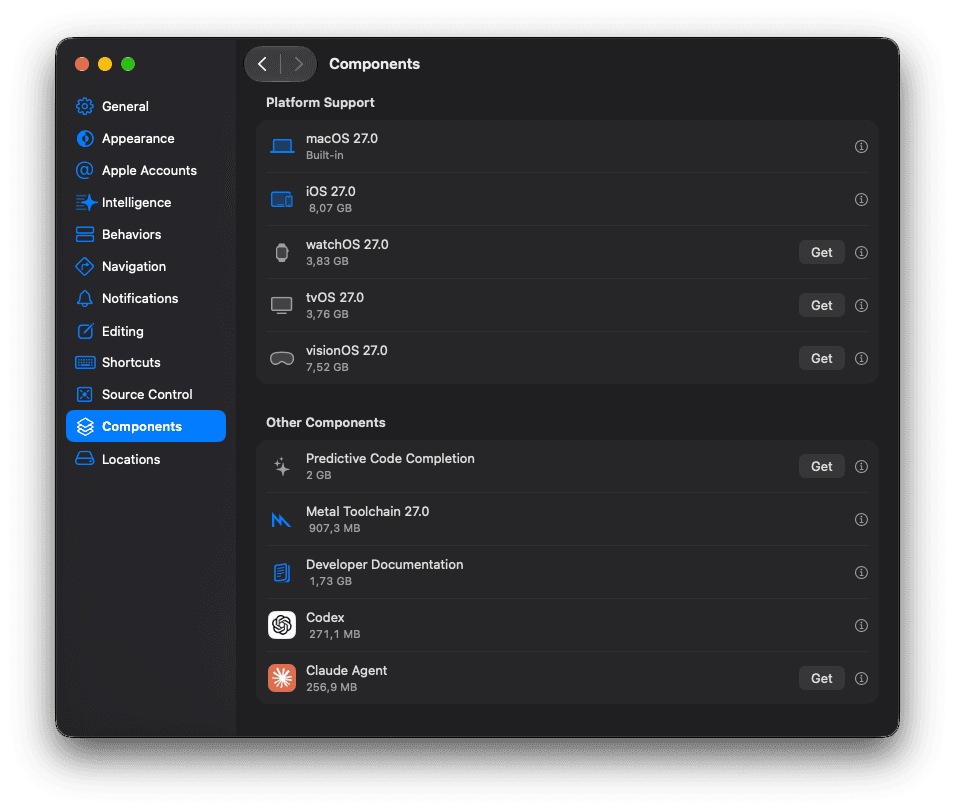
Xcode → Settings → Components lists the platform support, Developer Documentation, and installed Codex components.
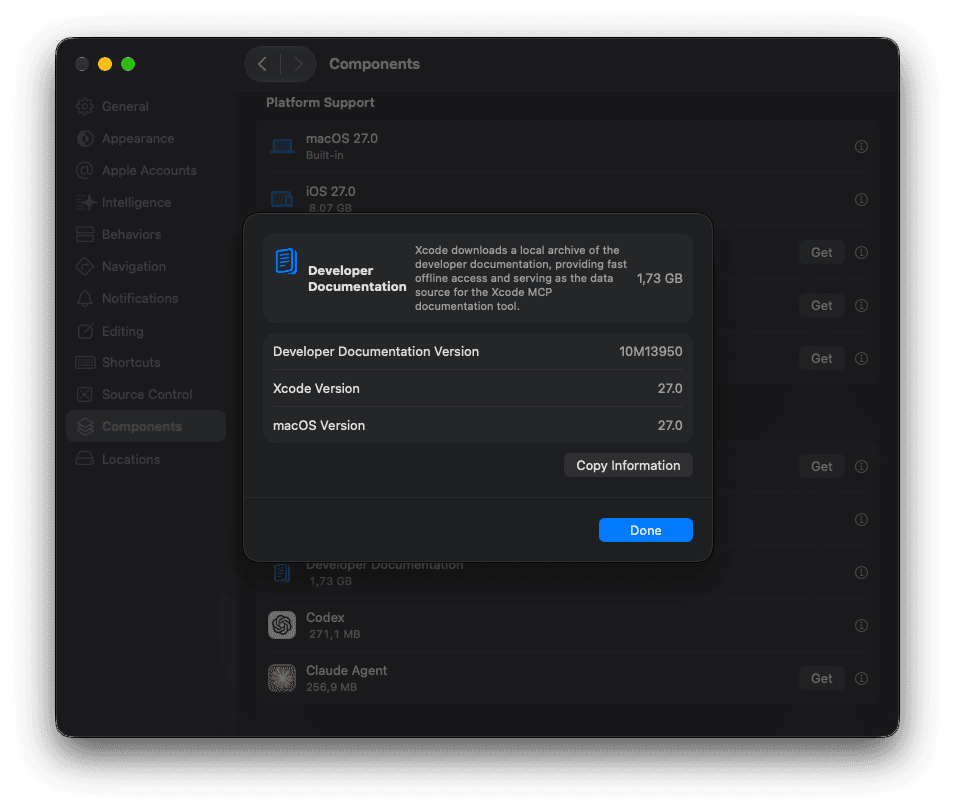
The Developer Documentation details panel shows the archive version used by Xcode's documentation tools.
1. Make the Codex command available in Terminal
If you installed Codex through the ChatGPT desktop app, its app bundle may contain the CLI even when Terminal cannot find the codex command. If codex returns:
zsh: command not found: codex
First, check whether the bundled executable exists:
test -x /Applications/ChatGPT.app/Contents/Resources/codex && echo "Codex CLI found"
If that command prints Codex CLI found, add its directory to your zsh PATH:
printf '\n# Bundled Codex CLI\nexport PATH="$PATH:/Applications/ChatGPT.app/Contents/Resources"\n' >> ~/.zshrc
source ~/.zshrc
Check that Terminal can now find it:
command -v codex
codex --version
If the file is absent, install the Codex CLI using OpenAI's current installation instructions. If you do not want to change your PATH, use the full executable path in each command instead.
2. Register Xcode's MCP bridge with Codex
Xcode exposes its MCP server through xcrun mcpbridge. Register it with Codex as a local STDIO server:
codex mcp add xcode -- /usr/bin/xcrun mcpbridge
The /usr/bin/xcrun path is deliberate. It lets macOS resolve the active Xcode developer directory in the normal way. If you keep multiple Xcode installations, select the one you want with xcode-select, or set DEVELOPER_DIR for the MCP process.
Verify the registration:
codex mcp list
codex mcp get xcode
You should see something like:
xcode
  enabled: true
  transport: stdio
  command: /usr/bin/xcrun
  args: mcpbridge
The ChatGPT desktop app, Codex CLI, and Codex IDE extension share MCP configuration when they run on the same Codex host, so you should not need to register the server separately in each client.
3. Allow external agents in Xcode
In Xcode, open Xcode → Settings → Intelligence and enable external agent access under Model Context Protocol.
The wording can vary slightly between Xcode builds. The important setting is the one that allows external agents to use Xcode tools. When the agent connects for the first time, Xcode may show a dialog similar to:
Allow “Codex” to access Xcode?
Choose Allow. If the dialog offers Don't ask again for this agent binary until Xcode restarts, that keeps the approval for the current Xcode session. It is not the same as enabling permanent headless access.
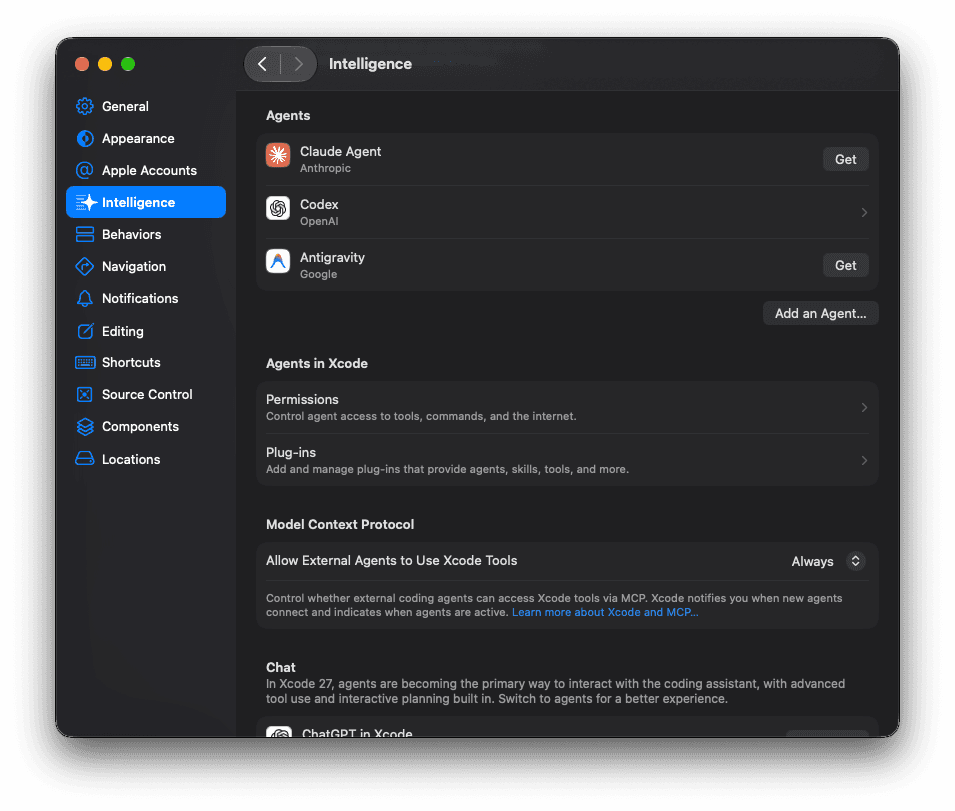
Xcode → Settings → Intelligence → Model Context Protocol. Always keeps external-agent access enabled in Xcode, while the headless service is configured separately.
4. Decide whether you want headless access
There are two different workflows:
Xcode-open workflow
Xcode is running with a project open. Codex connects through the bridge and uses the active Xcode session. This is the simplest setup and gives you the normal Xcode UI while the agent works.
Headless workflow
To keep Xcode's MCP service available after you close Xcode, enable headless mode from Terminal:
sudo xcrun mcp-server enable
Check the service state with:
xcrun mcp-server status
For a headless configuration, the result should show permission enabled and, once connected, a running MCP service. The Always choice in Intelligence settings controls external-agent access in Xcode; it does not replace this headless-mode command.
If external access is enabled but xcrun mcp-server status reports:
Permission: disabled
mcp-server: not running
the bridge is configured, but the persistent headless service is not enabled. The distinction matters when Codex must access Xcode after Xcode is closed.
Avoid --unsafe-always-allow-all-agents unless you have a specific reason to trust every local agent process. Individual approval is the safer default.
5. Open a project once to approve Codex and its folder
Xcode's MCP tools may refuse requests until the agent has opened a project through MCP. For example, this documentation search can fail before approval:
This agent isn't approved to use Xcode's tools yet.
Call XcodeOpenWorkspace or XcodeNewProject first.
With Xcode running, open the project normally before prompting Codex. In a headless workflow, you can open it through the MCP service:
xcrun mcp-server open /path/to/YourProject/YourProject.xcodeproj
Headless Xcode tracks permitted agents and folders separately. Run xcrun mcp-server status to inspect pending requests and stored permissions. You can approve a pending request by its reported ID:
sudo xcrun mcp-server approve <request-id> --always
Once the agent and folder are approved, Codex can use Xcode tools for that folder until the approval expires or is cleared.
6. Test the connection with a read-only action
Before building or changing code, test a harmless operation. Listing schemes is a good first check because it proves that Codex can reach the project through Xcode:
Xcode project: YourProject
Active scheme: YourProject
Run destination: iPhone simulator
You can also test Apple's local documentation search with a query such as:
Search SwiftUI documentation for NavigationStack.
The result should include the NavigationStack symbol and Apple’s examples for navigationDestination and NavigationPath.
If scheme discovery works but documentation search does not, check that Xcode's Developer Documentation component is installed. If both fail, check the MCP registration and agent approval first.
7. Export Apple's Xcode skills for Codex
MCP supplies tools. Skills supply reusable instructions for when and how to use those tools. Xcode 27 can export its skills as regular SKILL.md files.
For personal, global Codex usage, export them to Codex's global skills directory:
xcrun agent skills export \\
  --output-dir "$HOME/.codex/skills"
Xcode 27.0 exported ten skills in this setup, including:
swiftui-specialist;swiftui-whats-new-27;device-interaction;app-intents-specialist;app-intents-whats-new-27;modernize-tests; anduikit-app-modernization.
After the export, Codex can discover those skills across projects.
Refresh the global export after updating Xcode:
xcrun agent skills export \\
  --replace-existing \\
  --output-dir "$HOME/.codex/skills"
The skills come from your installed Xcode version, so refreshing after an Xcode update keeps their API guidance aligned with the SDKs you are actually using.
This global directory is for Codex sessions launched outside Xcode. Xcode keeps the configuration for agents launched inside Xcode under ~/Library/Developer/Xcode/CodingAssistant/; changing that internal directory does not configure the external Codex client used in this guide.
Common problems and fixes
codex: command not found
If the executable check in step 1 succeeds, Codex is inside the ChatGPT app bundle but its directory is missing from your shell PATH. Add /Applications/ChatGPT.app/Contents/Resources to ~/.zshrc, reload the shell, and run codex --version.
Codex is listed but Xcode tools are unavailable
Confirm that the server is enabled:
codex mcp get xcode
Then confirm external-agent access in Xcode Intelligence settings. Open a project through MCP once so Xcode can request approval for Codex and the project folder.
It asks for approval again
The approval checkbox shown by Xcode can last only until Xcode restarts. Use sudo xcrun mcp-server enable for a persistent closed-window workflow. Individual agent and folder approvals can still be required when a new agent identity or folder is encountered.
The MCP works only when Xcode is open
That usually means the bridge is registered but headless service permission is disabled. Run:
xcrun mcp-server status
If it reports Permission: disabled, enable the service and check the status again.
The documentation query returns poor results
Use a focused query and name the framework when possible:
Search SwiftUI documentation for the iOS 27 changes to toolbar customization.
Broad queries such as “all new iOS 27 features” can return general framework pages. The local archive is working even when the query needs refinement.
Skills do not appear after export
Make sure the output directory is absolute. Xcode performs the export through its own service, so a relative path can resolve somewhere unexpected. Also restart or refresh the Codex client after adding new global skills.
A small security note
Xcode MCP can build, edit, test, and interact with projects. Treat it like a development tool with real local access. Keep agent approval scoped to the folders you intend to work on, prefer individual approvals over unsafe global trust, and review write actions before allowing them in an unfamiliar repository.
The final setup
The completed setup looks like this:
Codex CLI available in PATH
        ↓
Codex MCP configuration: xcode → /usr/bin/xcrun mcpbridge
        ↓
Xcode 27 external-agent access enabled
        ↓
Codex approved for the project folder
        ↓
Xcode Developer Documentation installed locally
        ↓
Apple skills exported to ~/.codex/skills
The key lesson is that these are separate layers. A successful codex mcp add command does not by itself grant Xcode permission. An installed documentation archive does not by itself register an MCP server. Exported skills improve the agent’s workflow, but they are not a replacement for the bridge.
Once those pieces are in place, Codex can move from “suggest Swift code” to a much more useful loop: search the current Apple documentation, inspect the project, make a change, build it, run it, and verify the result on a simulator.